Understanding the differences between HDDs, SSDs, mSATA, SATA M.2, and NVMe M.2 can help you choose the best drive for your device.
When comparing HDDs, SSDs, mSATA, M.2 SATA, and M.2 NVMe, the main differences are speed, reliability, and compatibility. SSDs and NVMe drives deliver much faster performance and greater durability than HDDs, while M.2 and mSATA offer slimmer device designs. Understanding these distinctions helps you make the best choice.
Before we delve into the specific types of drives, it’s important to clarify the differences between form factors, interfaces, and SSDs vs. hard drives. By examining these fundamentals first, you’ll gain the context needed to understand the evolution of storage technology and how the following detailed comparisons relate to your device choices.
With these basics established, the next section takes a closer look at mSATA SSDs and provides a clear breakdown of how M.2 SATA and M.2 NVMe differ. This progression highlights where performance and compatibility shift across technologies, setting the stage for a focused overview of NVMe generations and their impact on speed and compatibility.
After discussing interfaces and drive types, we’ll transition to memory types. This next step will clarify how memory influences performance, lifespan, and cost. Practical tips will then offer guidance for maximizing SSD longevity, identifying dependable brands, and making the best choice for your upgrade.
By moving through each section in order, you’ll receive structured, practical information that prepares you to confidently select the best storage solution for your upgrade.
Storage Drive Form Factors Explained
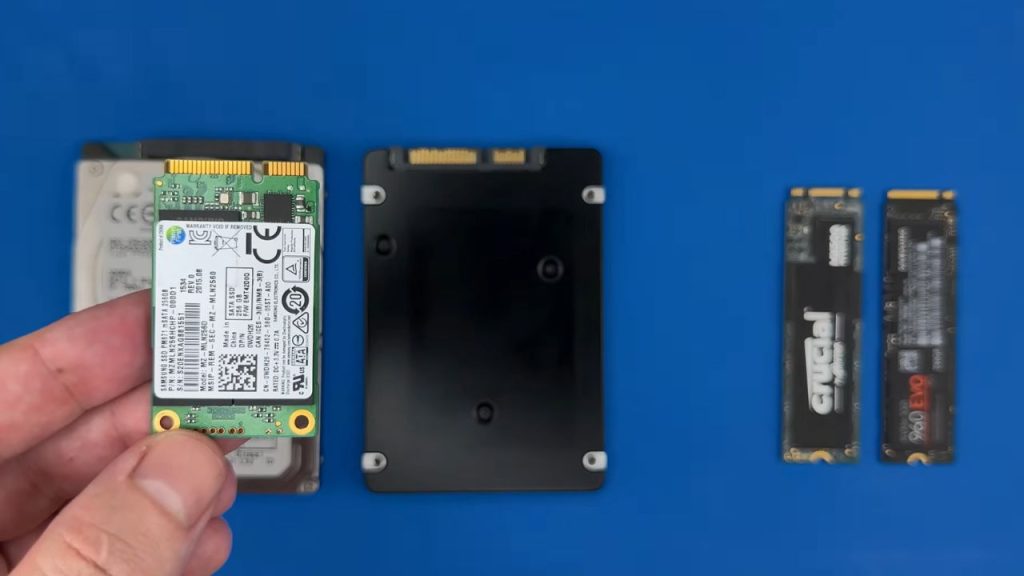
The storage form factor determines the device’s size, shape, and fit, including dimensions, connectors, and mounting. Choosing the right form factor ensures compatibility.
The 2.5-inch SSD or HDD is compact for laptops; the 3.5-inch HDD is used in desktops and servers.
The mSATA (mini-SATA) is a small, card-shaped SSD designed for thin laptops and embedded systems.
M.2 is a slim, flexible SSD design for modern devices, supporting both SATA and NVMe, depending on the drive.
SATA vs NVMe: Understanding Storage Interfaces
There are two main storage interfaces, or ways drives connect to computers: SATA and NVMe.
The storage interface dictates data transfer speed and compatibility between the device and the system.
The SATA interface is used by HDDs, SSDs, mSATA, and M.2 SATA drives, with maximum speeds up to 550 MB/s.
SATA is backward compatible. 2.5-inch and M.2 SSDs can use adapters to fit each other’s slots if both use SATA.
mSATA drives can also be adapted to the 2.5-inch SATA standard.
Adapters can convert between mSATA and 2.5-inch SATA drives, though the stacked result is bulky.
SATA is slower than newer NVMe with PCIe. SATA SSDs top out at 550 MB/s; PCIe Gen5 NVMe SSDs can reach 14,000 MB/s, demonstrating the performance leap enabled by NVMe.
Now that you have an overview of storage interfaces, let’s take a closer look at how HDDs differ from SSDs.
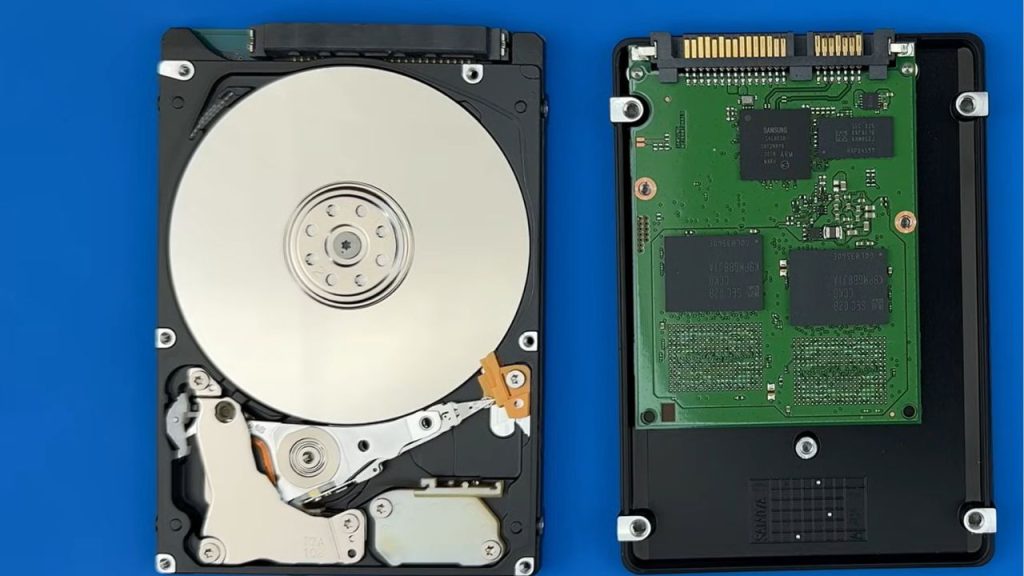
The key difference between HDDs and SSDs is how they store and retrieve data. Both often use the 2.5-inch form factor and SATA interface, making upgrades easy.
HDDs and SSDs differ in data storage and retrieval, best seen by comparing their internal components.
An HDD stores data on a spinning magnetic disk and uses a moving read/write head to access it.
SSDs use NAND flash memory chips to store data electronically, without moving parts.
HDDs are much slower than SSDs, with speeds of 80–160 MB/s compared to SSDs’ 550 MB/s.
Additionally, HDDs have higher latency because the read/write head must physically reposition to access data, further reducing performance.
HDDs are less durable due to their moving parts, while SSDs, with no moving parts, are more shock-resistant.
SSDs are faster, more durable, compact, and efficient. HDDs are valued for their low cost and high capacity and remain popular for external drives due to their lower price per gigabyte.
A key advantage of a hard drive is easier data recovery. If parts like the spindle motor or read/write head fail, you can move the disk to a donor drive to recover data, usually making recovery simpler and cheaper than with a failed SSD.
What is an mSATA SSD?
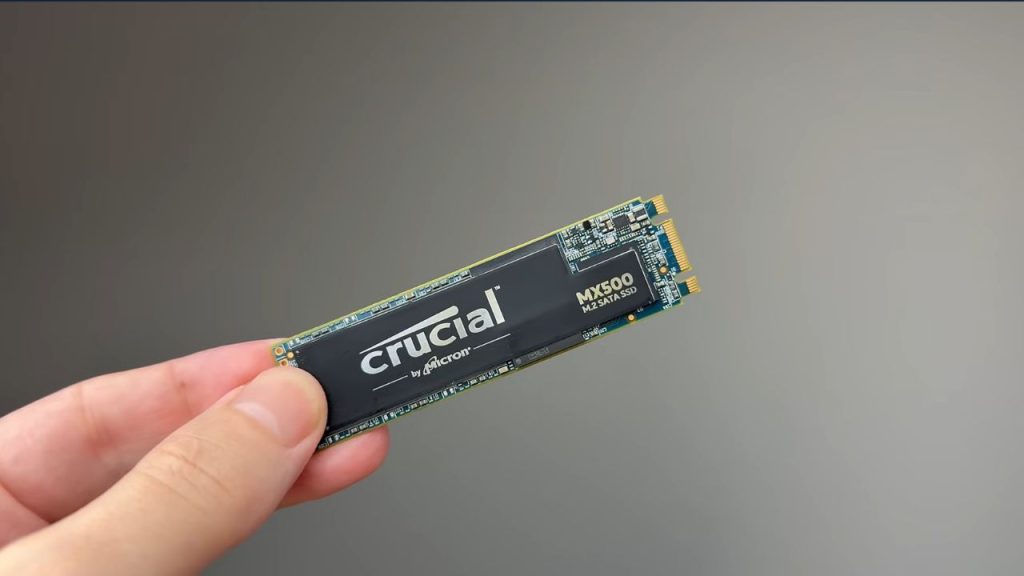
mSATA SSDs are compact SATA SSDs for laptops, Ultrabooks, and embedded systems. They match standard SATA SSDs in performance, limited to around 550 MB/s, but come in a smaller form factor.
mSATA SSDs are available in two sizes: full-size and half-size.
The mSATA SSD uses a mini PCI Express connector and is electrically SATA-compatible, but physically smaller than standard SATA connectors. It cannot be used in 2.5-inch, regular SATA, or M.2 slots.
mSATA storage is now rare, having been largely replaced by M.2 in modern devices.
M.2 SATA vs M.2 NVMe: Key Differences
M.2 SATA and M.2 NVMe are both M.2 SSDs but differ in interface and speed. M.2 SATA uses the older SATA interface, with speeds up to 550 MB/s. M.2 NVMe connects via PCIe, achieving higher speeds; PCIe Gen3 NVMe drives reach 3,500 MB/s or more. Knowing your device’s supported interface is key.
M.2 SSDs come in sizing formats like 2280, 2260, 2242, 2230. 2280 is the most common.
Before buying an M.2 SSD, check which M.2 size your device supports. Some consoles support all sizes; most motherboards support up to three; most laptops only one or two.
M.2 SATA uses the SATA interface and reaches speeds up to 550 MB/s, matching 2.5-inch SATA SSDs.
M.2 NVMe uses the PCIe interface and NVMe protocol for higher speeds, depending on PCIe generation.
These two M.2 SSDs use different interfaces and can’t be used interchangeably unless the device supports both.
M.2 SATA and M.2 NVMe look similar but differ by connector notches (B+M key for M.2 SATA, M key for M.2 NVMe), which affects compatibility.
Example: M.2 SATA can fit B- or M-keyed slots, but only works if SATA is supported. M.2 NVMe fits only M-keyed PCIe slots. NVMe can’t be installed in non-PCIe devices.
Therefore, it is important to check your device’s specifications, particularly the type of slot available on your motherboard, before making a purchase. To ensure a smooth upgrade, follow these clear steps to verify compatibility and help avoid issues during installation:
– Alternatively, use system information tools such as Device Manager (Windows), System Information (macOS), or third-party utilities like CrystalDiskInfo.
2. Check the motherboard manual:
– Look up your motherboard model, either stamped on the board or via system info tools.
– Download the manual from the manufacturer’s website. Locate the storage section to see which M.2 slots are present and which interfaces (SATA, PCIe/NVMe) each slot supports.
3. Check the BIOS/UEFI settings:
– Enter BIOS/UEFI (usually by pressing Delete, F2, or F12 during boot) and look for the storage configuration menu. This may show which slots or types are recognized, along with the supported interfaces for each.
4. Verify physical size compatibility:
– Confirm which M.2 lengths (like 2280, 2242, 2230, etc.) your device or motherboard supports, as installing the wrong size will prevent the drive from fitting properly.
5. Check manufacturer support:
– Visit your device or motherboard manufacturer’s website for a compatibility list or use their online support tool for SSD upgrades.
Completing these steps will help ensure your new SSD is fully compatible with your system and prevent installation issues.
A common question is whether an M.2 SATA SSD can be installed in any compatible slot and work with any device. The answer depends on the specific device.
Most motherboards support both SATA and PCIe, enabling the use of both types of M.2 SSDs. However, an M.2 SATA fits in a PlayStation 5 but won’t work because the PS5 supports only NVMe.
This highlights the importance of verifying your device’s specifications before purchasing an SSD.
Choose M.2 SATA for compatibility and affordability in older systems. Choose M.2 NVMe for top speed in modern devices.
NVMe Generations Explained: Gen 3 vs Gen 4 vs Gen 5
While the SATA interface is already considered outdated, NVMe is advancing rapidly, with new generations continually emerging.
On an M.2 NVMe, you may see the inscription Gen4, which indicates that it belongs to the fourth generation. Next to this, you might also see x4, which indicates that the SSD uses four lanes for data transfer.
M.2 NVMe varies significantly across PCI Express generations (Gen3, Gen4, and Gen5) in terms of speed and bandwidth:
Third generation: sufficient for most tasks, including gaming, light video editing, and general use.
Fourth generation: ideal for intensive applications like 4K/8K video editing, professional 3D rendering, and high-performance gaming.
Fifth generation: suitable for enterprise-level tasks, high-performance computing, and demanding workflows that require maximum speed.
Each generation is backward compatible. Higher-generation NVMe SSDs can run on lower-generation PCI slots, but they will operate at the maximum speed supported by the motherboard’s PCI slot.
For example, a Gen5 SSD installed in a PCI Gen3 slot will be limited to Gen3 speeds, approximately 3500 MB/s.
SSD Memory Types Explained: SLC vs MLC vs TLC vs QLC
Along with the emergence of new M.2 NVMe generations, new memory types are also being developed. The type of memory in an SSD determines its performance, durability, cost, and capacity.
Here is an overview of the four main NAND flash memory types:
Single-Level Cell (SLC): stores one bit per cell. SLC is the simplest and most reliable NAND type. It offers the fastest write speeds due to its low complexity and the longest lifespan, up to 100,000 write cycles. It stands out for its high reliability, making it ideal for mission-critical applications such as servers, enterprise storage, and industrial devices. However, it also has disadvantages: a high cost per gigabyte and limited storage capacity compared to other memory types.
Multi-Level Cell (MLC): stores 2 bits per cell. MLC strikes a balance between performance and capacity. It delivers good performance, offers a respectable lifespan of up to 10,000 write cycles, and is more affordable than SLC. Disadvantages: higher cost than TLC and QLC, and reduced durability compared to SLC.
Triple-Level Cell (TLC): stores 3 bits per cell. TLC is the most common NAND type in consumer SSDs due to its affordability and lower cost per gigabyte compared to SLC and MLC. For most users, it offers sufficient speed, higher storage capacity, and durability of up to 3,000 write cycles. It is commonly used in consumer SSDs, gaming systems, and general-purpose computing. Disadvantages: slower write speeds and shorter lifespan than MLC and SLC.
Quad-Level Cell (QLC): stores 4 bits per cell. QLC prioritizes storage density and cost-effectiveness, offering the highest storage capacity and the lowest cost per gigabyte. It is suitable for budget SSDs, data archiving, and applications with high read volume. Disadvantages: the slowest write speeds among NAND types and the shortest service life, up to 1,000 write cycles.
Two SSDs of the same type and storage capacity can have completely different prices. The difference lies in the memory type. The cheaper SSD uses TLC memory, while the more expensive one uses MLC.
What Is 3D NAND and V-NAND?
In addition to these memory types, there are technologies like V-NAND, Vertical NAND, and 3D NAND. While there is no technical difference between the two, V-NAND is Samsung’s branding for its 3D NAND technology, whereas other manufacturers, such as Micron, Intel, and SK Hynix, use the term 3D NAND.
It is important to understand that 3D NAND is not a separate memory type like SLC, MLC, TLC, or QLC. Instead, it represents an improvement in the physical structure of NAND memory.
3D NAND involves stacking memory cells vertically, which increases storage capacity, speed, and lifespan. This approach reduces wear and tear by minimizing cell interference and leveraging advanced error-correction technologies.
3D NAND can be combined with any of the four NAND memory types listed above. For example, you might encounter 3D TLC NAND or 3D QLC NAND, depending on the number of bits stored per cell in the stacked structure.
Today, 3D NAND has become the standard for modern SSDs, enhancing performance and durability while maintaining a compact form factor.
SSD Reliability and Lifespan
We have now examined all the important components of an SSD in detail. With this understanding, you can easily distinguish the differences between them.
What remains is to discuss reliability and how to extend the lifespan of an M.2 SSD.
Many users pay special attention to the lifespan of memory cells and the number of rewrite cycles. But is this concern really justified? Let’s explore this further.
For example, consider the Samsung 970 EVO Plus SSD with a 2-terabyte capacity. The TBW (terabytes written) rating is the key metric for measuring the drive’s durability. This model has a TBW rating of 1,200 terabytes, meaning you can write approximately 336 gigabytes of data per day for 10 years without exceeding the drive’s endurance rating.
It is important to note that this rating applies only to writing new data, not to reading or accessing stored data.
In real-world use, most users do not write nearly 336 gigabytes of data daily, meaning your SSD is likely to last well beyond 10 years under normal conditions. Therefore, concerns about exhausting the memory’s endurance are generally unnecessary. In fact, most storage devices will become obsolete before their memory resources deplete.
How to Extend SSD Lifespan
What is truly critical for extending the life of an M.2 SSD is managing the memory controller’s operating temperature.
The memory controller is the second most important component of an M.2 SSD, serving as an integrated processor that coordinates the operation of the memory chips. Its efficiency plays a significant role in ensuring the SSD’s longevity.
High temperatures are a primary factor in the degradation of silicon chips. Prolonged exposure to elevated temperatures can lead to microcracks in metal layers and to deterioration of the dielectric between metal bus layers.
Since both the memory chips and the controller are made of silicon with similar internal components, high temperatures adversely affect them. However, the controller is often the first component to fail, as it generates and retains more heat than the memory chips.
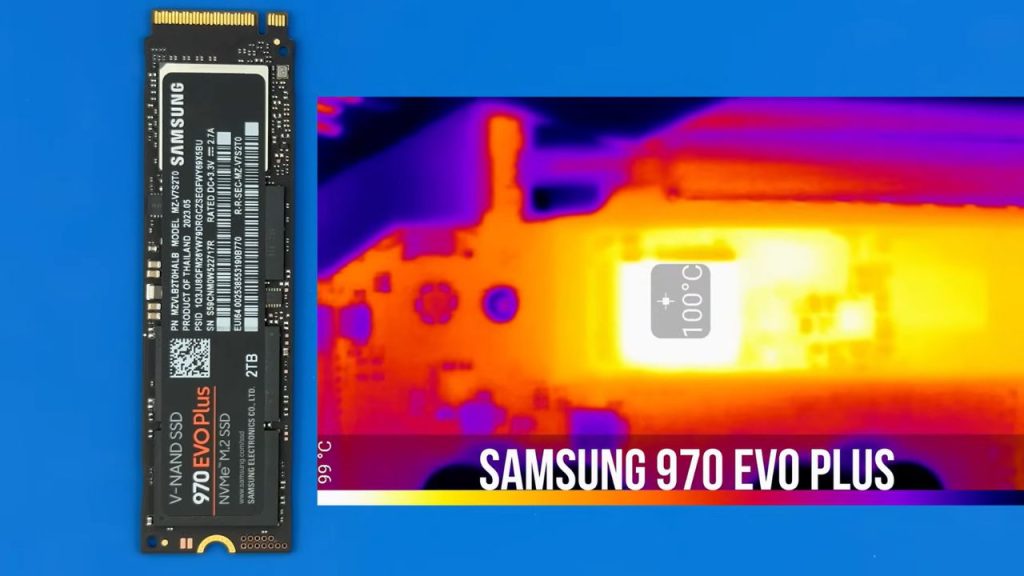
To demonstrate the impact of heat on SSDs, a prolonged stress test was conducted on the Samsung 970 EVO Plus SSD. During the test, the memory controller reached 101 degrees Celsius, an extremely high temperature that can negatively affect the SSD’s performance and longevity.
To address this issue, an additional heat sink made of aluminum or copper can be used. Heat sinks are designed to absorb and dissipate heat from the SSD’s controller and memory chips, effectively lowering their temperature.
Many M.2 SSDs on the market come with pre-installed heat sinks. If your M.2 SSD does not come with one, you can easily install a heat sink separately.
For laptops, low-profile heat sinks are also available. Even a slim heat sink can reduce the temperature of an M.2 SSD by 15-20%, which is especially important in laptops, where ventilation is often limited, and manufacturers typically pay less attention to SSD cooling.
In the test with the Samsung SSD, adding a heat sink reduced the controller’s temperature from 101 to 77 degrees Celsius during prolonged stress testing.
Using an additional heat sink for M.2 NVMe SSDs helps ensure stable performance, prevents thermal throttling, and extends the drive’s lifespan. For high-performance SSDs or systems with limited cooling, such as laptops, a heat sink is a valuable investment.
One final recommendation to maintain your M.2 NVMe SSD’s performance is to avoid overfilling it. Leaving 10-20% of the drive’s free space ensures the SSD runs at its maximum speed. This practice helps the controller efficiently manage data, reduces wear on the memory cells, and prevents performance degradation over time.
Most Reliable SSD Brands
When it comes to data storage, it is often better to stick with reliable manufacturers.
Reliable manufacturers are those with strong reputations for performance, reliability, and low failure rates. These companies typically have complete control over the production process, including NAND manufacturing and firmware optimization.
Based on market data and reviews, the following companies consistently rank as top performers:
Samsung owns the entire production process, including the manufacturing of NAND chips, controllers, and firmware. Samsung SSDs are renowned for their very low failure and return rates and are backed by robust warranties, often up to five years.
Western Digital (WD) owns SanDisk, a leading NAND producer, and designs its own controllers, which ensures high-quality components. WD SSDs have a low failure and return rate, making them a reliable choice for consumers.
Crucial by Micron: Micron, the parent company of Crucial, is one of the world’s largest NAND manufacturers, ensuring high-quality components in its SSDs. Crucial SSDs offer competitive pricing without compromising reliability and are known for their low failure and return rates.
Key Points About SSD Form Factors, Interfaces, and Memory Types
There are three main SSD form factors: 2.5-inch SATA, M.2 SATA, and M.2.
There are only two interfaces: SATA and NVMe.
SATA is slow and outdated, while NVMe is modern, fast, and rapidly evolving through generations: Gen 3, Gen 4, and Gen 5.
The performance and durability of an M.2 SSD depend on its memory type.
SLC: best for maximum reliability and speed, ideal for enterprise tasks.
MLC: provides balanced performance and durability for prosumer workloads.
TLC: a great choice for everyday users and gamers.
QLC: budget-friendly, offering high-capacity storage where durability isn’t critical.
3D NAND technology improves SSD memory by providing higher capacity, better performance, and longer durability.
To ensure efficient and durable operation of the M.2 SSD controller and memory, it is recommended to install an aluminum or copper heat sink.
How to Choose the Right SSD for Your Device
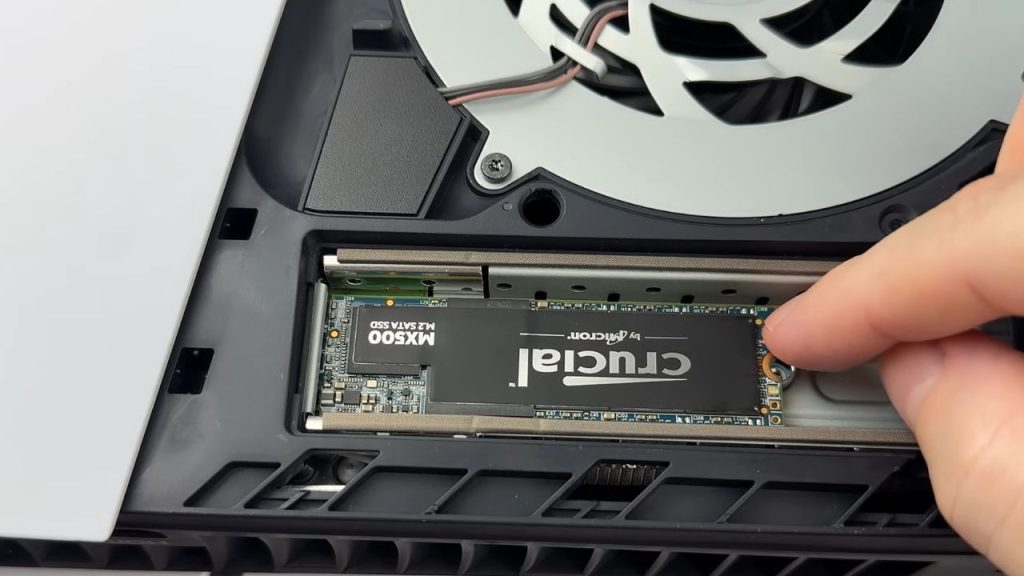
Now that the basics are covered, it’s time to choose the right SSD for your device.
For example, if you’re upgrading the storage in a laptop and are unsure which SSD type to buy, the easiest approach is to identify your current storage and use that as a guide.
To check your storage, open Device Manager by pressing and holding Windows + X, then selecting Device Manager from the menu.
In the list of devices, open the Disk Drives section. Find the name of your current storage drive and enter it into a search engine to gather detailed information.
For instance, if your laptop has an M.2 SSD, you might determine that it uses the NVMe interface, is 22-80, and is third-generation. Once you have this information, you can purchase an M.2 NVMe with a size of 22-80.
You can choose any amount of memory, as there are no technical restrictions, though some limitations may apply depending on your Windows operating system’s architecture. For example, ensure that your operating system is 64-bit and uses a GUID Partition Table (GPT).
The optimal memory type for most users is TLC 3D NAND.
To ensure reliability and warranty coverage, choose a reputable brand such as Samsung, Western Digital, or Crucial.
The last step is to choose the appropriate M.2 SSD generation. As mentioned earlier, Gen 4 or Gen 5 SSDs are backward compatible and can work in a Gen 3 slot, but will operate at Gen 3 speeds. Buying a faster SSD than your slot supports will not provide additional performance benefits.
But keep in mind that while the CPU may support the latest technologies, the motherboard’s chipset might not. You can often find such compatibility tables on the official websites of CPU manufacturers (such as Intel or AMD) or motherboard manufacturers. Simply search for your processor or motherboard model, along with keywords such as “SSD compatibility table” or “supported PCIe generations.” Manufacturer support pages and user manuals are also helpful resources for finding out which SSD generations your system supports.
Therefore, it’s always best to check your device’s full specifications.
If these requirements seem confusing, the model of your laptop, computer motherboard, or other device can help determine which SSD is right for your upgrade.
Lastly, many gaming laptops support installing two SSD drives. Check your laptop’s user manual, visit the manufacturer’s website, or remove the bottom cover to see if a second storage slot is available.
If you are planning a DIY upgrade, always follow safe upgrade practices. Start by backing up your important data in case anything goes wrong during installation. Before opening your device, shut it down completely, disconnect the power supply, and if possible, remove the battery. Protect sensitive components by grounding yourself to avoid static electricity damage—using an anti-static wrist strap or touching a grounded metal object can help. Work on a clean, non-carpeted surface with good lighting. Keep small screws and parts organized, and handle all components by the edges to prevent damage. Taking these precautions helps ensure a smooth, safe drive-upgrade process.
FAQ
What is the difference between HDD and SSD?
An HDD uses spinning magnetic platters and a read/write head to store and access data, while an SSD uses NAND flash memory and has no moving parts. SSDs are faster, more durable, more compact, and more energy efficient, while HDDs are usually cheaper for large-capacity storage.
What is the difference between SATA and NVMe?
SATA and NVMe are storage interfaces. SATA is older and slower, with maximum speeds of about 550 MB/s. NVMe is newer and much faster because it uses PCIe, with speeds reaching up to around 14,000 MB/s on PCIe Gen 5 drives.
What is an mSATA SSD?
An mSATA SSD is a compact version of a SATA SSD designed for smaller devices like laptops, ultrabooks, and embedded systems. It offers similar speed to standard SATA SSDs but uses a smaller form factor and a different connector.
What is the difference between M.2 SATA and M.2 NVMe?
M.2 SATA and M.2 NVMe share the same M.2 form factor, but they use different interfaces. M.2 SATA uses the SATA interface and is limited to around 550 MB/s. M.2 NVMe uses PCIe with the NVMe protocol and delivers much higher speeds.
Can M.2 SATA and M.2 NVMe drives be used interchangeably?
No. Even though they look similar, they are not always interchangeable. Compatibility depends on whether the slot supports SATA, PCIe, or both.
How do I know which M.2 SSD size my device supports?
You need to check your device specifications. Common M.2 sizes include 22110, 2280, 2260, 2242, and 2230. The most common size is 2280, but laptops and motherboards may support different lengths.
What do Gen 3, Gen 4, and Gen 5 mean on NVMe SSDs?
These refer to the PCIe generation used by the SSD. Higher generations offer more speed and bandwidth. Gen 3 is enough for general use, Gen 4 is better for heavier workloads, and Gen 5 is aimed at the most demanding performance needs.
Are newer NVMe SSD generations backward compatible?
Yes. A newer-generation NVMe SSD can work in an older PCIe slot, but it will only run at the maximum speed supported by that slot.
What do SLC, MLC, TLC, and QLC mean?
These are NAND flash memory types.
SLC stores 1 bit per cell, MLC stores 2 bits per cell, TLC stores 3 bits per cell, and QLC stores 4 bits per cell. As storage density increases, cost usually drops, but endurance and write speed also decrease.
Which SSD memory type is best for most users?
According to the article, TLC 3D NAND is the best choice for most users because it offers a strong balance of performance, durability, storage capacity, and cost.
What is 3D NAND?
3D NAND is a method of vertically stacking memory cells to improve storage capacity, performance, and durability. It is not a separate memory type, such as SLC, MLC, TLC, or QLC.
Is V-NAND different from 3D NAND?
Not really. V-NAND is Samsung’s branding for its 3D NAND technology, while other manufacturers usually use the term 3D NAND.
How long does an SSD last?
The article explains that SSD lifespan is often longer than most people expect. For example, a Samsung 970 EVO Plus 2TB with a 1,200 TBW rating could handle about 336 GB of writes per day for 10 years without exceeding its endurance rating.
What affects SSD lifespan the most?
The article emphasizes that temperature, especially controller temperature, is one of the most important factors affecting SSD longevity.
Does an M.2 NVMe SSD need a heat sink?
A heat sink is recommended, especially for high-performance SSDs and laptops with limited cooling. It can reduce temperature, prevent thermal throttling, and help extend SSD lifespan.
How much free space should I leave on an SSD?
The article recommends leaving 10-20% free space to maintain maximum speed, reduce wear, and prevent performance degradation over time.
Which SSD brands are considered reliable?
The article identifies Samsung, Western Digital, and Crucial as reliable SSD brands due to their strong reputations, low failure rates, and control over manufacturing and firmware.
How can I choose the right SSD for my device?
The article recommends checking your current storage model in Device Manager, identifying the form factor, interface, supported size, and generation, then choosing a compatible SSD from a reputable brand.
Can a laptop support two SSDs?
Yes, many gaming laptops support two SSDs. The article recommends checking the user manual, the manufacturer’s website, or the laptop’s internal layout to confirm whether a second storage slot is available.
Conclusion
Choosing between HDDs, SSDs, mSATA, M.2 SATA, and M.2 NVMe comes down to three main factors: speed, form factor, and compatibility. HDDs still make sense if you want the cheapest way to get large storage capacity, but SSDs are clearly the better choice for speed, durability, efficiency, and overall everyday performance.
Among SSD options, mSATA is now mostly outdated, while M.2 has become the modern standard. M.2 SATA remains a practical option for older or budget-focused systems, but M.2 NVMe is the clear winner for anyone who wants the fastest storage performance available today. It offers a massive speed boost, better responsiveness, and stronger long-term value for modern laptops, desktops, and gaming systems.
At the same time, raw speed is not the only thing that matters. Memory type, SSD generation, cooling, and motherboard support all play a major role in how well a drive performs and how long it lasts. That is why the best upgrade is not simply the fastest SSD on the shelf, but the one that matches your device properly and fits your workload.
In the end, the smartest storage upgrade is the one that balances compatibility, performance, reliability, and budget. If you check your system carefully and choose the right drive type, a storage upgrade can be one of the easiest and most noticeable improvements you can make to your device.